Uploading Datasets
To upload datasets, you will need to create an account at OpenCSG Community. Datasets are Git-based repositories, which give you versioning, branches, discoverability and sharing features. You can upload anything you want to the dataset repository.
Currently, we support four ways to upload files: via Web interface, Git, Command Line (CLI), and SDK.
💡 Which method should I choose?
- Web Interface: The easiest and quickest method, suitable for a small number of small files (limited to 5MB per file).
- Git: Suitable for version control and managing a large number of scattered code and configuration files.
- Command Line (CLI) / SDK: Recommended for uploading ultra-large dataset files (e.g., larger than 5GB), as they provide better handling of large volumes of data.
Upload Files to a Repository Using Git
Prerequisites
Before starting, ensure you have completed the following preparations:
- Install Git and Git LFS: Ensure Git and Git LFS are installed on your system. To handle large files, initialize Git LFS in your terminal:
git lfs install - Configure Git Account:
git config --global user.name "Your Username"
git config --global user.email "your.email@example.com" - Get an Access Token (if using HTTPS): Navigate to Profile -> Settings -> Access Token to generate and copy an Access Token. It will be used as your git operations password.
Upload Steps
-
First, clone your repository to your local machine using
git clone:git clone https://hub.opencsg.com/<your_username>/<your_dataset_name>.git -
Assuming that your files are located in the
/work/my_dataset_dirlocal directory, you can copy the files to the repository and upload them to the platform with the following commands:cd test_dataset_1
cp -rf /work/my_dataset_dir/* .
git add .
git commit -m "commit message"
git push
[Note]
Files with the following suffixes are automatically uploaded with git-lfs:
.7z,.arrow,.bin,.bz2,.ckpt,.ftz,.gz,.h5,.joblib,.mlmodel,.model,.msgpack,.npy,.npz,.onnx,.ot,.parquet,.pb,.pickle,.pkl,.pt,.pth,.rar,.safetensors,.tar,.tflite,.tgz,.wasm,.xz,.zip,*.zst
If there are other types of large files, run the following command to make them upload as lfs:
git lfs track <your_file_name>
Note
If the file size exceeds 5GB, git lfs upload may be restricted. Please use CSGHub SDK or CLI tool to upload.
Upload Files to a Repository Using Web Interface
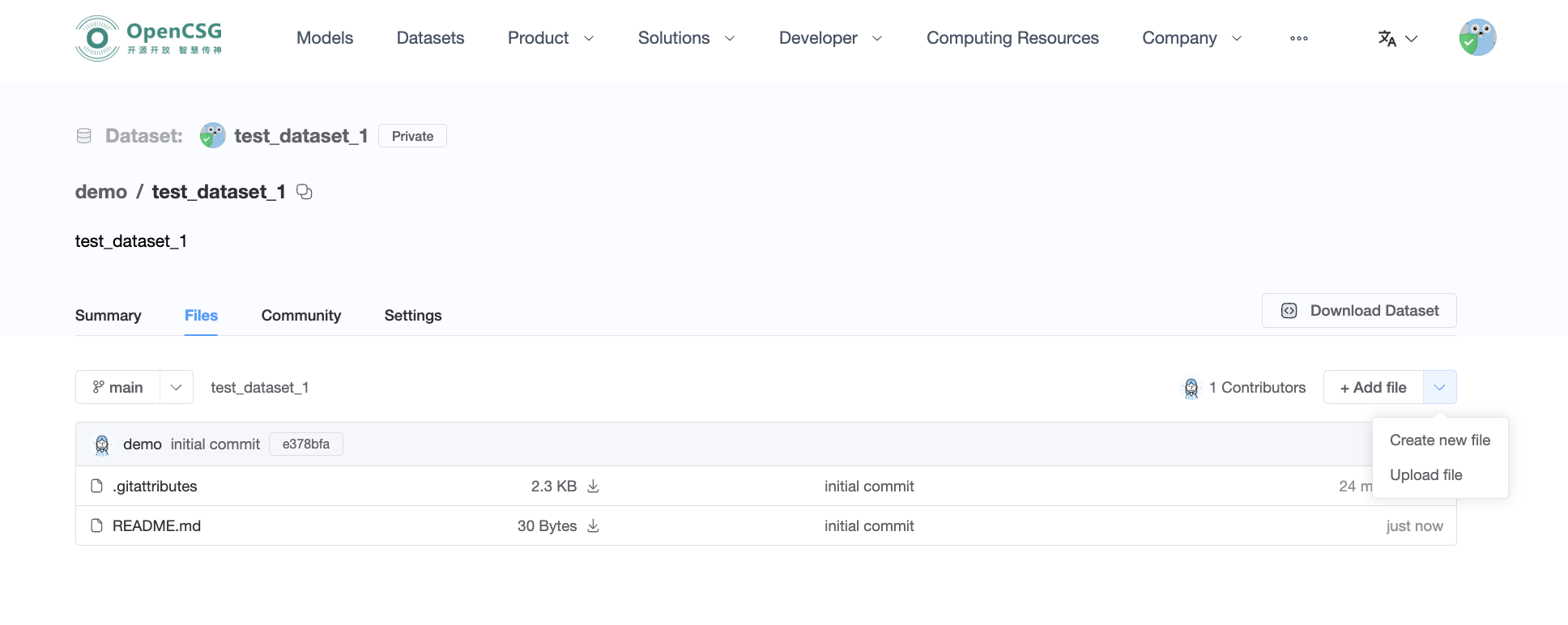
To add files to your repository with the web interface, start by selecting the Files tab, and then clicking Add file. You will be given the option to create a new file or upload a file.
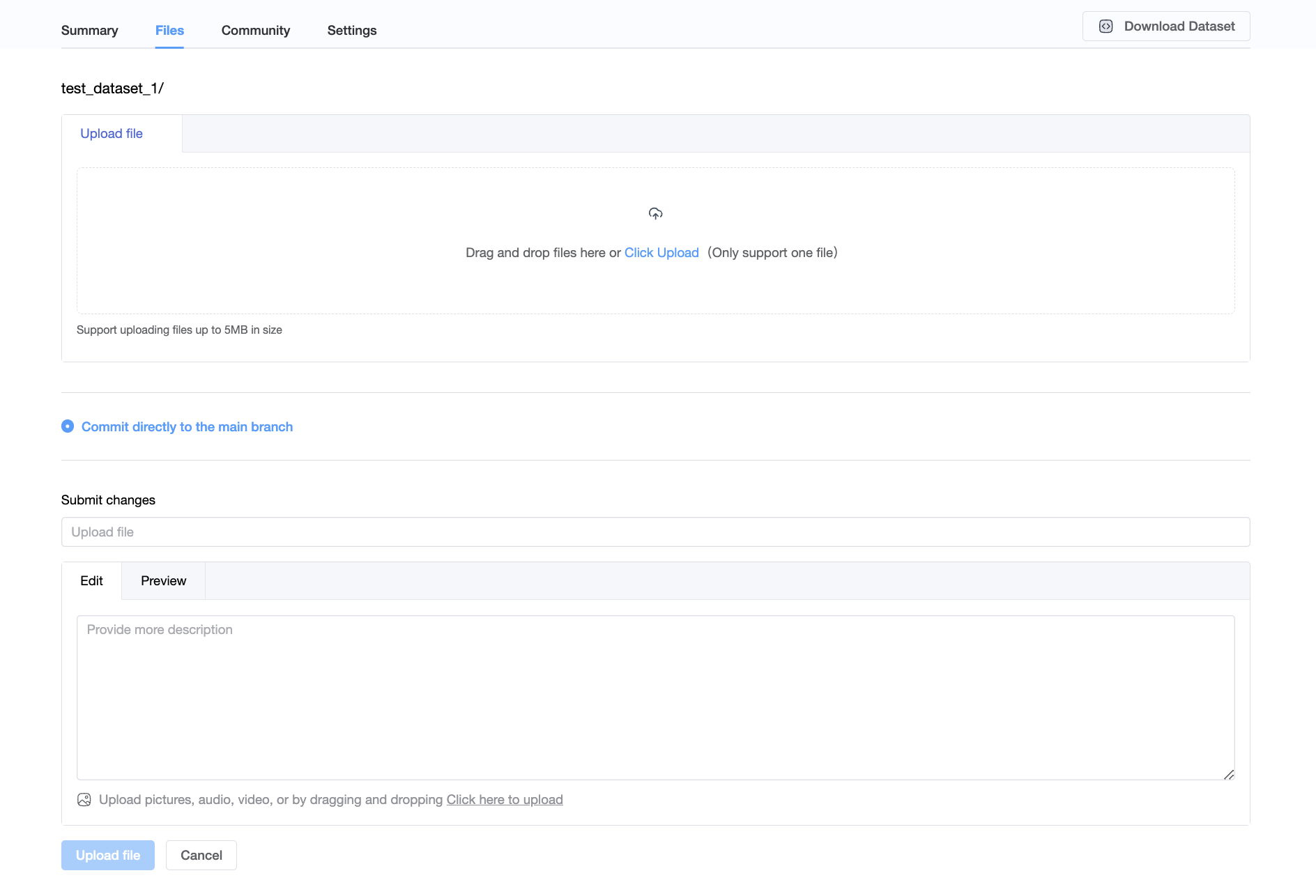
Note: While the web interface is very convenient, it does restrict the file size. The maximum size for a single file is 5MB. For larger files, please use Git, CLI, or the SDK.
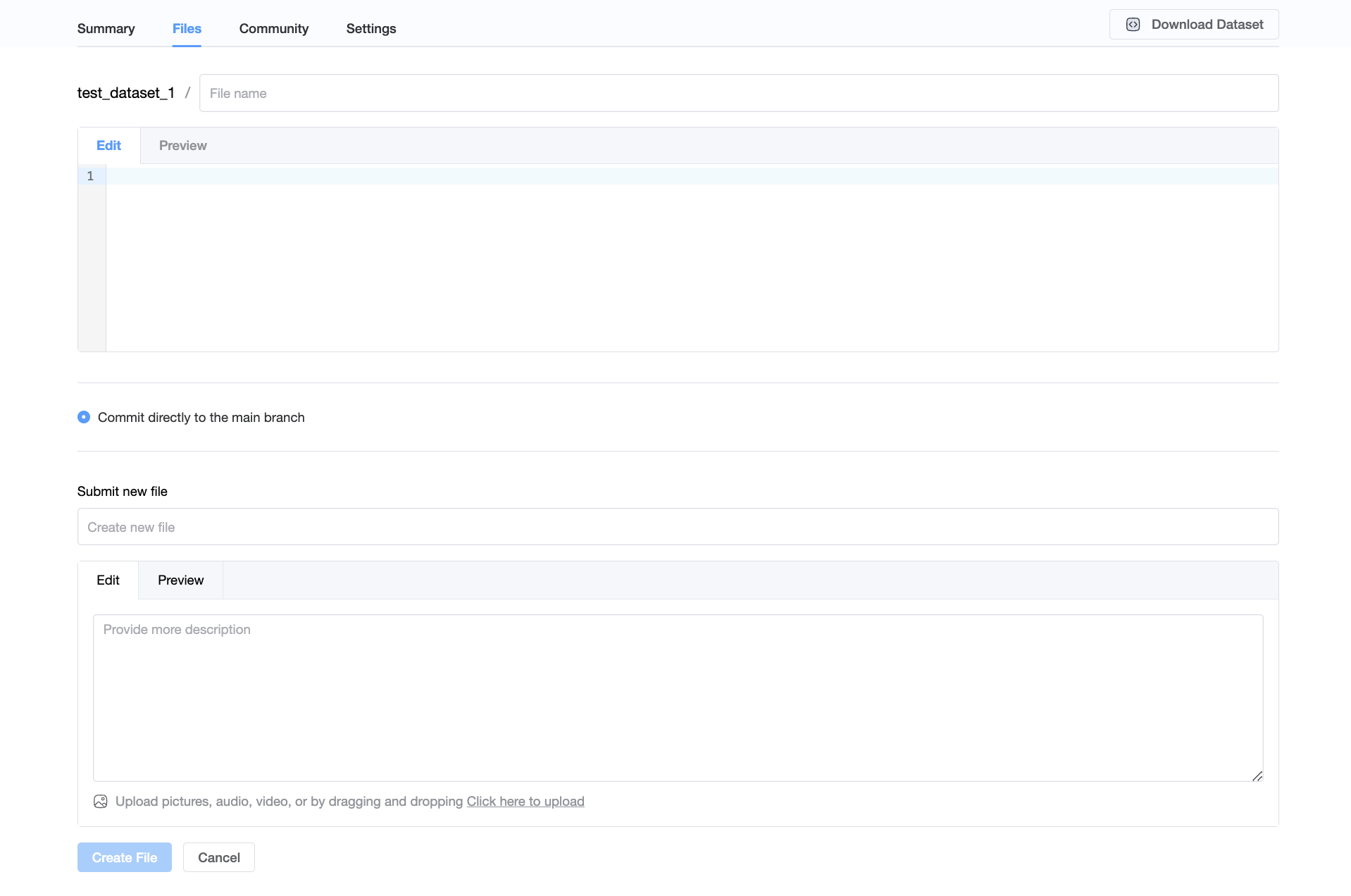
Creating a New File
Click Create new file, add the contents and click Create File to save your file.
Uploading a File
Click Upload file, you can choose a local file to upload.
Uploading Data via Command Line
Get your Access Token: When using the CLI or SDK to upload files, authentication is required. Please navigate to Profile -> Settings -> Access Token to generate and copy your Token.
You can conveniently upload data using the command line tool csghub-cli. The installation method is as follows:
pip install csghub-sdk
Here is an example of uploading a local folder to the root path of a repo:
export CSGHUB_TOKEN=your_access_token

# upload local large folder '/Users/hhwang/my_model' to model repo 'wanghh2000/model05'
csghub-cli upload-large-folder wanghh2000/model05 /Users/hhwang/my_model
Uploading Data Using the SDK
The CSGHub SDK provides a Python library that allows you to upload data through the SDK in your code.
Here is an example code to upload a repository:
from pycsghub.repository import Repository

token = "your access token"
r = Repository(
    repo_id="wanghh2003/ds15",
    upload_path="/Users/hhwang/temp/bbb/jsonl",
    user_name="wanghh2003",
    token=token,
    repo_type="dataset",
)
r.upload()
The SDK also supports uploading single or multiple files. For detailed examples, please refer to the SDK Documentation.